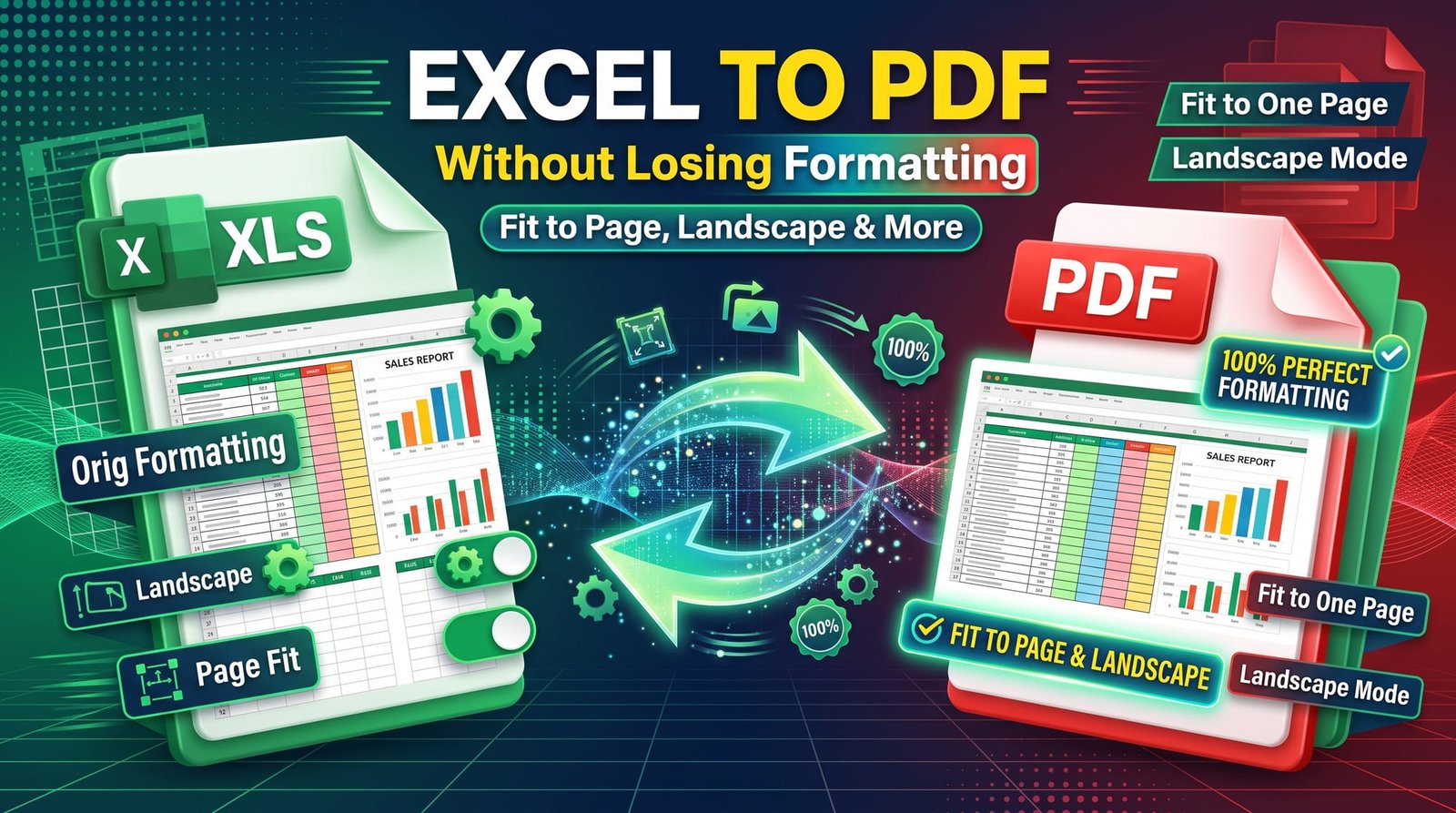
A spreadsheet that looks perfect on screen can turn into a mess as a PDF: the last column jumps to a separate page, the text is microscopic, or you get twenty pages when you expected two. Converting Excel to PDF well is mostly about telling Excel how the page should look before you convert.
This guide explains how to get a clean PDF every time — online or in Excel itself — with fixes for the most common problems.
Why Convert Excel to PDF?
- Anyone can open it, even without Excel.
- Formulas, hidden sheets and raw data stay private.
- It prints exactly as you see it.
- Invoices, quotes and reports look professional and can’t be changed by accident.
How to Convert Excel to PDF Online (Step by Step)
With our free Excel to PDF converter:
- Upload your .xlsx or .xls file.
- Click Convert.
- Download the PDF.
The file is rendered with a real office engine (LibreOffice), which keeps cell formatting, borders, colours and number formats. It also follows the page setup saved in your workbook — so the tips below apply online too.
Set Up the Page Before Converting
Most layout problems are fixed in Excel’s Page Layout tab. Spend a minute here and the PDF will come out right.
| Problem | Fix in Excel |
|---|---|
| Columns spill onto extra pages | Page Layout → Width: 1 page |
| Sheet is wide | Orientation → Landscape |
| Unwanted cells included | Select range → Print Area → Set Print Area |
| Header row only on first page | Print Titles → Rows to repeat at top |
| Text too small | Fit width only, leave height automatic |
| Gridlines missing | Sheet Options → Gridlines → Print |
Save the workbook after changing these settings, then convert.
How to Fit Excel on One Page in PDF
Go to Page Layout and set both Width and Height to 1 page. Excel shrinks everything to fit. This works well for small tables; for large ones, the text may become too small to read. A better compromise is often Width: 1 page, Height: Automatic — all columns fit across, and rows continue onto as many pages as needed.
Excel to PDF in Landscape
Wide sheets nearly always look better in landscape. Choose Page Layout → Orientation → Landscape. You can set different orientations for different sheets in the same workbook, and the PDF will respect each one.
How to Convert Excel to PDF in Excel Itself
On Windows, use File → Save As (or Export) → PDF. Under Options you can choose to export the active sheet, the selection or the entire workbook. On Mac, use File → Save As and choose PDF as the format. Online conversion is handy when you don’t have Excel installed — on a Chromebook, a shared computer or your phone.
Why Won’t Excel Print to PDF?
A few common causes:
- No default printer set — Excel sometimes needs one to calculate page layout. Set Microsoft Print to PDF as default.
- Corrupted print area — clear it via Print Area → Clear Print Area.
- Huge used range — formatting applied to a million rows creates endless blank pages. Delete unused rows and columns.
- Add-ins or an outdated Office build — try saving in safe mode or updating.
If Excel itself won’t cooperate, an online converter is a quick workaround.
Converting Several Sheets
When you convert a whole workbook, each sheet that has content becomes one or more pages in the PDF. Hide sheets you don’t want included, or move them into a copy of the workbook. If you’ve made separate PDFs, join them with Merge PDF.
Keeping Formatting Intact
- Use common fonts like Calibri, Arial or Aptos — unusual fonts may be substituted.
- Avoid very narrow columns that show ##### for numbers; widen them before converting.
- Check conditional formatting colours print well in black and white if you’ll print.
- Use Page Break Preview (View tab) to see exactly where pages split.
What About Charts?
Charts convert well and stay sharp in the PDF. Make sure they sit inside the print area and aren’t cut across a page break — Page Break Preview helps here too.
Is It Safe to Convert Spreadsheets Online?
Spreadsheets often contain salaries, prices or customer data. Use a service that deletes files immediately and doesn’t ask you to sign in. Ours processes your file and removes it right after conversion. For extra protection, add a password to the PDF with Protect PDF.
Going the Other Way
Need to get data from a PDF back into a spreadsheet? PDF to Excel does that, and Excel to Word turns sheets into Word tables for reports. The PDF format is ideal for spreadsheets you want to share but not have edited.
Final Thoughts
The secret to converting Excel to PDF without losing formatting is page setup: landscape for wide sheets, fit columns to one page width, set a print area and repeat header rows. Then convert online or in Excel. Try the free Excel to PDF converter for a print-ready result.
Frequently Asked Questions
How do I convert Excel to PDF?
Upload the spreadsheet to an Excel to PDF converter, or in Excel use File → Save As → PDF.
How do I convert Excel to PDF without losing formatting?
Set orientation, fit-to-width and print area in Page Layout first, then convert with a tool that uses a real office engine.
How do I fit an Excel sheet on one PDF page?
In Page Layout set Width and Height to 1 page, or Width to 1 page and Height to Automatic for large sheets.
How do I convert Excel to PDF in landscape?
Choose Page Layout → Orientation → Landscape, save, then convert.
Why are my columns cut off in the PDF?
The sheet is wider than the page. Use landscape and set the width to fit one page.
Why won’t Excel print to PDF?
Check a default printer is set, clear the print area and remove formatting from unused rows.
Can I convert XLSX to PDF without Excel?
Yes. An online converter works without Excel on any device.
How do I convert all sheets to one PDF?
Export the entire workbook from Excel, or convert the file online — each sheet becomes pages in one PDF.
How do I repeat header rows on every PDF page?
Use Page Layout → Print Titles and set Rows to repeat at top.
Is it safe to convert Excel to PDF online?
Yes when files are deleted after conversion and no account is required.