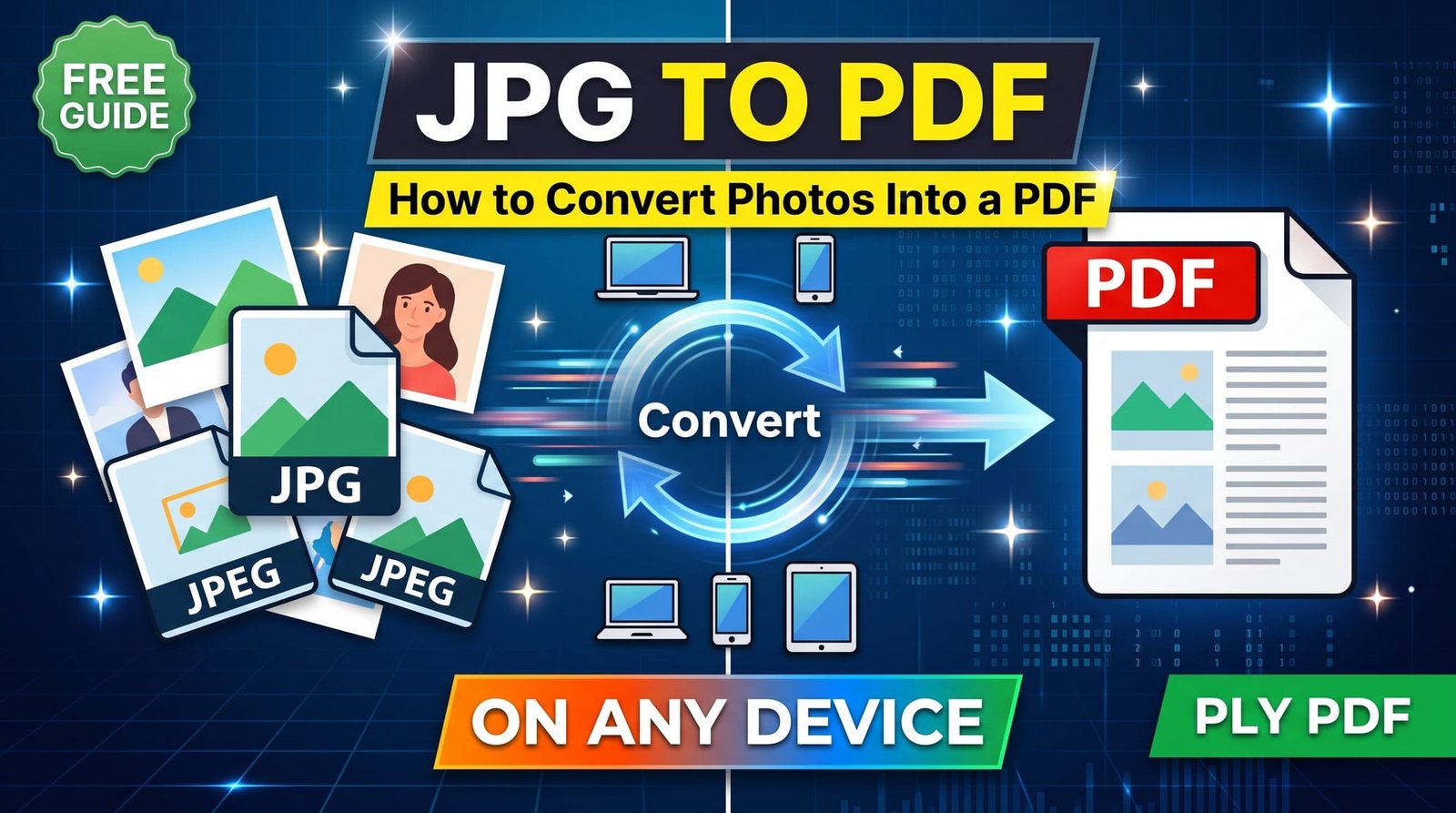
Universities want assignments as one PDF. Employers want ID copies as one PDF. Your accountant wants receipts as — you guessed it — one PDF. Converting image to PDF is one of those everyday jobs that should take seconds, and with the right tool it does.
This guide shows how to turn photos, screenshots and scans into a single document, which settings make it look professional, and how to do it on iPhone, Android, Windows and Mac.
Why Convert Images to PDF?
- One file instead of many: easier to email, upload and keep track of.
- Accepted everywhere: many portals take PDFs only.
- Fixed order: pages stay in the sequence you chose.
- Prints properly: A4 or Letter pages print at the right size.
How to Convert Image to PDF Online (Step by Step)
With our free Image to PDF converter:
- Upload your pictures — JPG, PNG, WebP and iPhone HEIC all work.
- Put them in the order you want the pages to appear.
- Choose a page size: fit to image, A4 or Letter.
- Add margins if you want a white border around each picture.
- Click Convert and download a single PDF.
Every image becomes one page. No sign-up, no watermark, and there’s no limit on the number of pictures.
Which Page Size Should You Choose?
| Option | Best for |
|---|---|
| Fit to image | Screenshots, designs, viewing on screen — no borders |
| A4 | Printing in most of the world, official submissions |
| Letter | Printing in the US and Canada |
If you’ll print the document or upload it to a form that expects standard pages, choose A4 or Letter. If it’s only for reading on screen, fitting the page to each image avoids white space.
Image to PDF Without Margins
Want each photo to fill the page edge to edge? Choose “fit to image” and set margins to zero. The PDF page then matches the picture exactly — ideal for portfolios and screenshots. For printing, a small margin is safer because most printers can’t print right to the edge.
Can a Photo Be a PDF?
Yes. A PDF can contain nothing but an image — that’s exactly what a scanned document is. The picture sits on the page just as it would on paper. If you also want the text in that photo to be searchable or copyable, run the PDF through OCR PDF afterwards.
Convert Image to PDF on iPhone
The Files and Photos apps have a hidden Print → pinch-to-zoom trick that creates a PDF, but it’s fiddly with several photos. An easier way: open the converter in Safari, tap upload, select the photos (HEIC is fine), and save the PDF to Files. You can then attach it to email or share it in any app.
Convert Image to PDF on Android
Some Android phones can print to PDF from the gallery, but options differ by brand. The browser method works on every phone: upload the photos, arrange them and download one PDF to your Downloads folder.
Convert Image to PDF on Windows and Mac
On Windows, you can select images in File Explorer, right-click and choose Print → Microsoft Print to PDF. On Mac, open the images in Preview and choose File → Export as PDF. Both work, but neither gives you easy control over order, page size and margins at once. An online converter does all three on one screen.
Image to PDF Without Losing Quality
A good converter places your picture in the PDF without re-compressing it heavily. To keep quality:
- Upload the original photo, not a WhatsApp-compressed copy.
- Don’t shrink images first unless you need a smaller PDF.
- Use PNG for screenshots with fine text.
If the finished PDF is too large to send, Compress PDF reduces it while keeping it readable.
Photographing Documents for PDF
When the images are photos of paper, the result depends on the photo:
- Shoot in daylight, straight above the page.
- Fill the frame with the document and avoid shadows from your phone.
- Crop away the table or background with Crop Image before converting.
For a dedicated workflow, Scan to PDF is built for exactly this.
Image to PDF and Merge With Other PDFs
Need to add a photo of a signed page to an existing PDF? Convert the photo first, then combine both files with Merge PDF in the right order.
Is an Image to PDF Converter Free and Safe?
Ours is completely free, with no account and no watermark. Images are processed in memory and deleted immediately. Since PDFs of IDs or bank statements are sensitive, avoid services that require you to sign in or keep a history of your uploads. The PDF format is an open ISO standard, so the file you get opens on any device.
Final Thoughts
Turning an image to PDF is simple: upload, order, choose a page size and download. Pick A4 or Letter for printing, fit-to-image for screens, and use original photos for the sharpest result. Try the free Image to PDF converter next time a form asks for “one PDF file”.
Frequently Asked Questions
How do I convert an image to PDF?
Upload the image to an image to PDF converter, choose a page size and download the PDF.
How do I combine multiple pictures into one PDF?
Upload all the pictures at once, arrange them in order and convert — each image becomes one page of a single PDF.
Can I convert a picture to PDF on iPhone?
Yes. Open an online converter in Safari, select photos (HEIC works) and save the PDF to Files.
Can a photo be a PDF?
Yes. A PDF can contain just an image, like a scanned document. Use OCR to make its text searchable.
Which app converts images to PDF?
You don’t need an app — a browser-based converter works on iPhone, Android, Windows and Mac.
Is an image to PDF converter free?
Ours is free with no sign-up, no watermark and no limit on images.
How do I convert image to PDF without margins?
Choose a page size that fits the image and set margins to zero, so the picture fills the page.
Does converting an image to PDF reduce quality?
Not noticeably when you upload the original image; the picture is placed on the page as it is.
Can I add an image to an existing PDF?
Convert the image to PDF, then merge it with your existing PDF in the order you want.
What image formats can be converted to PDF?
JPG, PNG, WebP and HEIC images can all be combined into a PDF.