Websites, online forms and social platforms all have opinions about image size. Upload the wrong dimensions and your photo gets cropped, stretched or rejected. Knowing how to resize image files correctly — to exact pixels, without distortion — saves a surprising amount of frustration.
This guide covers how resizing works, how to avoid stretching and blur, the common sizes you’ll need, and how to do it on every device.
Pixels, Dimensions and Aspect Ratio
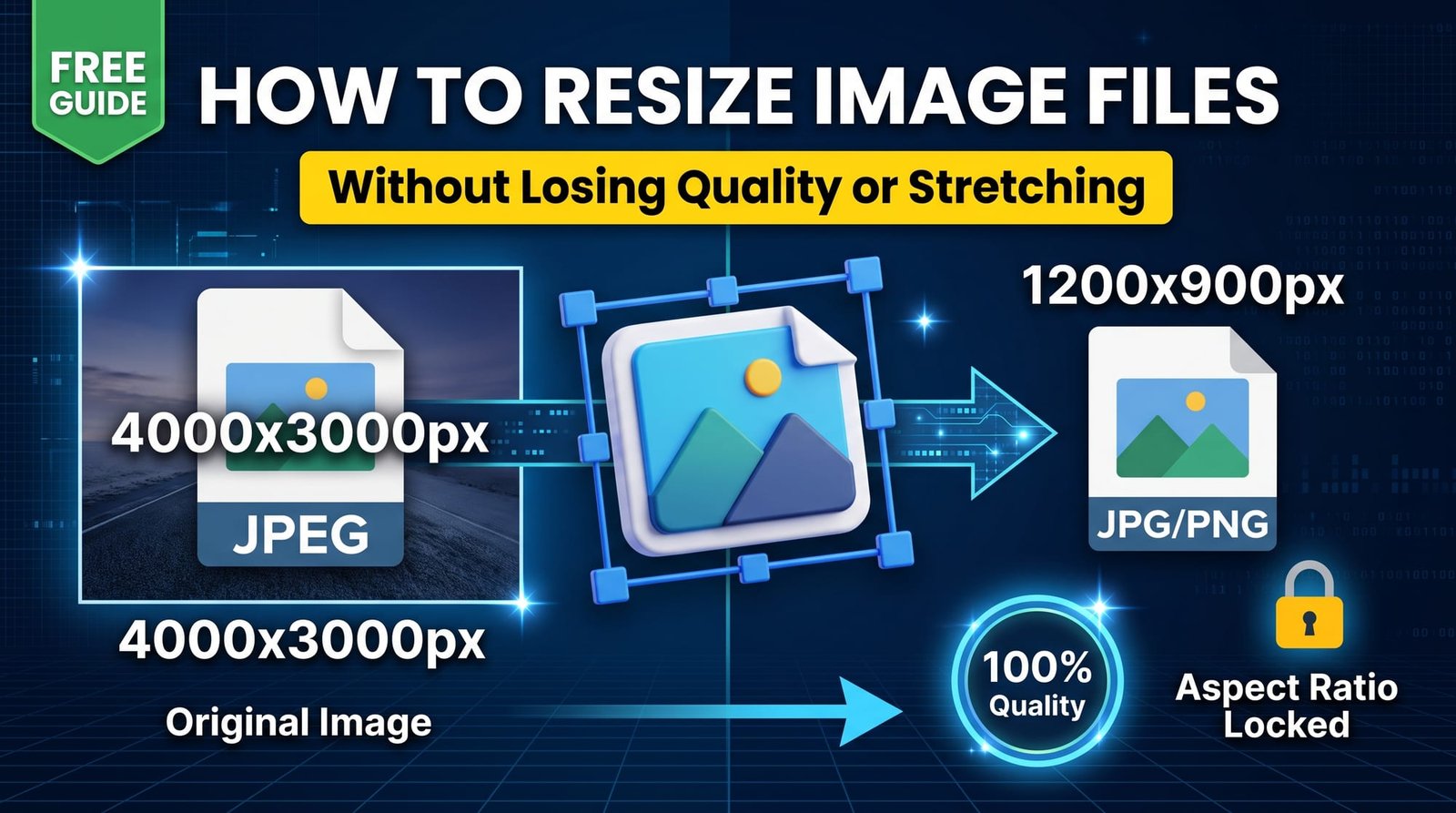
Every digital image is a grid of pixels. A photo described as 4000 × 3000 is 4000 pixels wide and 3000 tall. The relationship between width and height — here 4:3 — is the aspect ratio.
Resizing changes the number of pixels. If you change width and height by the same proportion, the image keeps its shape. If you don’t, it stretches or squashes — the classic “everyone looks taller” problem.
How to Resize Image Files Online (Step by Step)
With our free image resizer:
- Upload your JPG, PNG, WebP or other image.
- Enter the width in pixels you need.
- Leave height empty to keep proportions automatically, or enter both to fit the image inside that box.
- Click Resize and download the result in its original format.
The image is always scaled to fit without distortion, so you’ll never get a stretched result.
How to Resize an Image Without Losing Quality
Here’s the honest truth: shrinking an image keeps it sharp, while enlarging it can’t add detail that was never captured. A 600 px photo blown up to 3000 px will look soft no matter which tool you use.
- Always resize from the original, highest-resolution file.
- Resize down to the size you actually need, not larger.
- If an image must be bigger, enlarge modestly (up to about 150%).
- Sharpen slightly afterwards with Sharpen Image if it looks a little soft.
How to Resize an Image Without Stretching It
Stretching happens when width and height change by different amounts. Avoid it by setting only one dimension, or by using a resizer that fits images inside a box rather than forcing them into it. If you truly need a different shape — say a square from a landscape photo — crop first with Crop to Aspect Ratio or Square Crop, then resize.
Common Image Sizes You’ll Need
| Use | Recommended size (px) |
|---|---|
| Instagram square post | 1080 × 1080 |
| Instagram / TikTok story | 1080 × 1920 |
| YouTube thumbnail | 1280 × 720 |
| Facebook link image | 1200 × 630 |
| Website hero image | 1600–1920 wide |
| Blog content image | 800–1200 wide |
| Passport-style photo (online forms) | Often 600 × 600 — check the form |
For social platforms, our dedicated resizers like Instagram Post Resizer crop and resize in one step.
Resize Image for Instagram Without Cropping
Instagram crops photos that don’t fit its allowed ratios (1:1, 4:5 and 1.91:1). To keep a whole landscape photo, resize it to 1080 px wide and accept a landscape post, or add borders in an editor to make it square. If cropping is fine, the Instagram resizer fills the square from the centre.
Resize Image in KB vs Pixels
Forms sometimes say “max 200 KB” rather than giving pixel sizes. That’s file size, not dimensions. Resizing to smaller pixels does reduce file size dramatically, but to hit an exact KB target use Compress to Specific KB after resizing.
Resize Images on Windows, Mac, iPhone and Android
Windows 11
The Photos app and Paint both have resize options, though Paint makes it easy to stretch by accident. A browser-based resizer keeps proportions automatically.
Mac
Preview → Tools → Adjust Size works well for single images; just keep “Scale proportionally” ticked.
iPhone and Android
Neither has a precise pixel resizer built in. Open an online resizer in your browser, upload from your gallery and download the resized photo.
How to Resize Many Images at Once
For product catalogues or blog galleries, the Bulk Image Resizer applies the same width to every image and returns a ZIP — ideal for keeping a consistent look across a site.
Resize by Percentage Instead
If you just want an image “half the size”, Resize by Percentage is quicker than calculating pixels: enter 50 and both dimensions halve.
Is It Safe to Resize Images Online?
Choose a resizer that processes images without storing them. Ours resizes in memory and deletes the photo straight away — no account, no watermark.
Final Thoughts
To resize image files well: work from the original, shrink rather than enlarge, change only one dimension (or fit inside a box), and crop first when you need a different shape. Use the free image resizer whenever a site or form asks for exact pixels.
Frequently Asked Questions
How do I resize an image?
Upload it to an image resizer, enter the width (and optionally the height) in pixels and download the resized image.
How do I resize an image without losing quality?
Resize down from the original file. Enlarging can’t add detail, so avoid scaling small images up a lot.
How do I resize an image without stretching it?
Set only the width or use a resizer that fits the image inside a box, so the aspect ratio stays the same.
How do I resize an image to a specific size?
Enter the exact width and height. If the shape differs from your photo, crop to that ratio first.
How do I resize an image for Instagram?
Use 1080 px wide; for a perfect square post use 1080 × 1080 with an Instagram resizer.
How do I resize a photo on iPhone?
Open an online resizer in Safari, upload the photo, enter the width and save the result.
Can I resize images in bulk?
Yes. A bulk resizer applies the same dimensions to many images and downloads them as a ZIP.
What is the difference between resizing in pixels and in KB?
Pixels are the image dimensions; KB is the file size. Resizing reduces KB, but use a KB-target compressor for exact limits.
Is it safe to use an online image resizer?
Yes when images are processed in memory and deleted immediately, without an account.
Does resizing reduce file size?
Yes. Halving the width and height usually cuts the file size by around 75%.