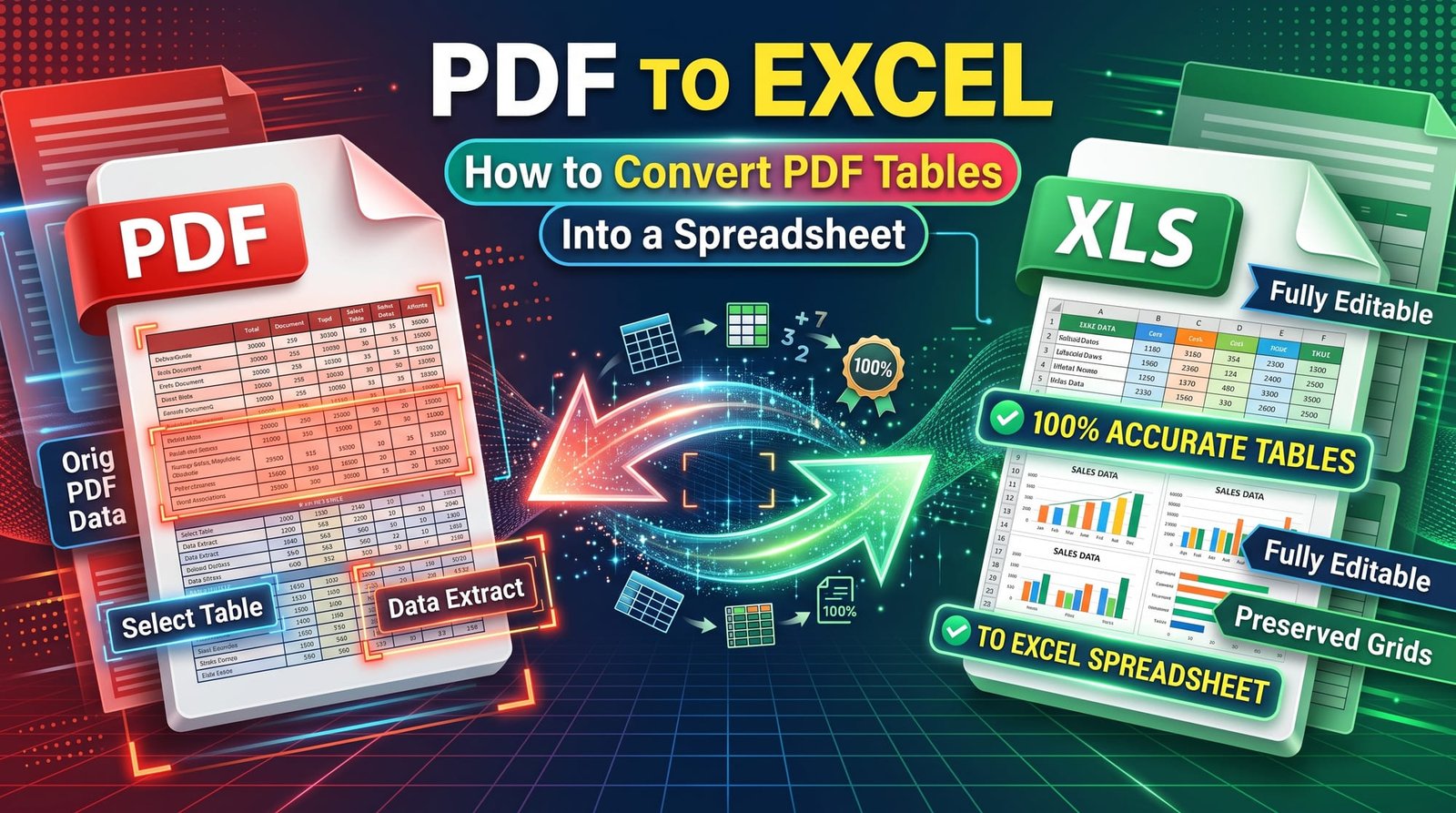
Bank statements, supplier price lists, sales reports and invoices often arrive as PDFs — perfect for reading, useless for calculating. Retyping hundreds of numbers is slow and error-prone. Converting PDF to Excel gets that data into a spreadsheet where you can sort, filter and add it up.
This guide explains what to expect from a conversion, how to clean the result quickly, and how to deal with the trickiest case: scanned PDFs.
Why Is Getting Data Out of a PDF So Hard?
A PDF is designed to look the same everywhere, not to be edited. Inside, a “table” is usually just pieces of text placed at particular positions on the page — there are no real rows, columns or cells. A converter has to read those text positions and rebuild something spreadsheet-like from them.
That’s why no PDF to Excel converter is perfect on every document. Simple, cleanly laid-out tables convert well; complex layouts with merged cells and multi-line entries need a little tidying.
How to Convert PDF to Excel Online (Step by Step)
With our free PDF to Excel converter:
- Upload your PDF.
- Click Convert.
- Download the .xlsx file.
- Open it in Excel, Google Sheets, Numbers or LibreOffice Calc.
Each PDF page becomes its own worksheet, with one line of text per row — a clean starting point for splitting into columns. No email address or sign-up needed.
Splitting the Data Into Columns
Once your text is in Excel, turning lines into proper columns takes a minute:
- Select the column with the imported lines.
- Go to Data → Text to Columns.
- Choose Delimited and tick Space (or Fixed width if columns line up neatly).
- Preview the result and click Finish.
In Google Sheets, use Data → Split text to columns. For more control, Excel’s Power Query can split, trim and reshape data and remember the steps for next month’s statement.
PDF to Excel Without Changing the Format
People often want the spreadsheet to look exactly like the PDF — same fonts, colours and borders. That’s not really how Excel works: a spreadsheet is a grid of values, and the visual design of a PDF doesn’t map neatly onto it. The useful goal is getting the data into the right cells. Once it’s there, Excel’s own formatting makes it look professional in seconds.
Converting Scanned PDFs (OCR)
If the PDF is a scan or a photo, there’s no text inside — just a picture. Any converter will return empty sheets. You need OCR (optical character recognition) first:
- Run the scan through OCR PDF to add a text layer.
- Convert the OCR’d PDF to Excel.
- Check the figures carefully — OCR can misread similar characters like 0 and O, or 1 and l.
A quick test: if you can select and copy text in the PDF, it’s text-based and will convert directly.
Getting Numbers to Behave Like Numbers
Sometimes figures come through as text, so SUM returns zero. Common fixes:
- Remove currency symbols and thousands separators with Find & Replace.
- Use VALUE() to convert text to numbers, or multiply the column by 1.
- Fix negatives shown as “(120.00)” or “120.00-” with a quick formula.
- Check dates — a PDF from another country may use day/month order.
Bank Statements to Excel
Bank statements are the most common reason people convert PDF to Excel. Most banks also offer a CSV export in online banking, which is cleaner than any PDF conversion — worth checking first. If only the PDF is available, convert it, then use Text to Columns on the date, description and amount columns.
PDF to Excel on Windows and Mac
Excel for Microsoft 365 can import data from a PDF via Data → Get Data → From File → From PDF, which works well on some well-structured tables. Mac versions of Excel don’t have this option. An online converter works on both, and on a Chromebook or tablet too.
Other Useful Conversions
- Need the text without a spreadsheet? PDF to Text gives you clean plain text.
- Need to edit the whole document? PDF to Word is better for paragraphs.
- Going the other way? Excel to PDF turns your finished spreadsheet into a print-ready PDF.
- Have tables in a Word file? Word to Excel converts real tables into real columns.
Is It Safe to Convert Financial PDFs Online?
Statements and invoices are sensitive. Use a service that doesn’t store files or require an account. Ours processes your PDF in memory and deletes it immediately after you download. If a PDF is password protected, unlock it first with Unlock PDF using the password you were given.
Tips for Better Results
- Use the original digital PDF, not a printed-and-scanned copy.
- Remove cover pages and terms-and-conditions pages first with Delete PDF Pages.
- Convert one month at a time, so the sheets stay manageable.
- Remember that CSV exports from banks and accounting apps are always cleaner than any PDF.
- Learn Text to Columns — it does most of the clean-up work.
Final Thoughts
PDF to Excel conversion won’t always produce a perfect table, but it saves you from retyping. Convert, split into columns, fix the number formats and you’re ready to analyse. For scans, OCR first. Try the free PDF to Excel converter with your next statement or report.
Frequently Asked Questions
How do I convert a PDF to Excel?
Upload the PDF to a PDF to Excel converter, download the .xlsx and use Text to Columns to split the data into columns.
Can I convert a PDF to Excel for free?
Yes. Our converter is free with no sign-up, email address or watermark.
Why is my converted Excel file empty?
The PDF is probably scanned, so it contains images rather than text. Run OCR on it first, then convert.
How do I convert PDF to Excel without changing the format?
Focus on getting the data into cells, then apply Excel formatting. A spreadsheet can’t copy a PDF’s visual layout exactly.
Can Excel open a PDF directly?
Excel for Microsoft 365 on Windows can import tables via Data → Get Data → From PDF. Mac Excel can’t.
How do I convert a bank statement PDF to Excel?
Check if your bank offers a CSV export first. Otherwise convert the PDF and split the columns with Text to Columns.
Why don’t my numbers add up after converting?
They may be stored as text. Remove symbols and separators, or use VALUE() to turn them into numbers.
Can I convert a scanned PDF to Excel?
Yes, after running OCR to recognise the text. Check figures carefully afterwards.
What is the difference between XLS and XLSX?
XLSX is the modern Excel format introduced in 2007; XLS is the older binary format. Both open in Excel.
Is it safe to convert PDF to Excel online?
Yes when the service deletes files immediately and doesn’t require an account.