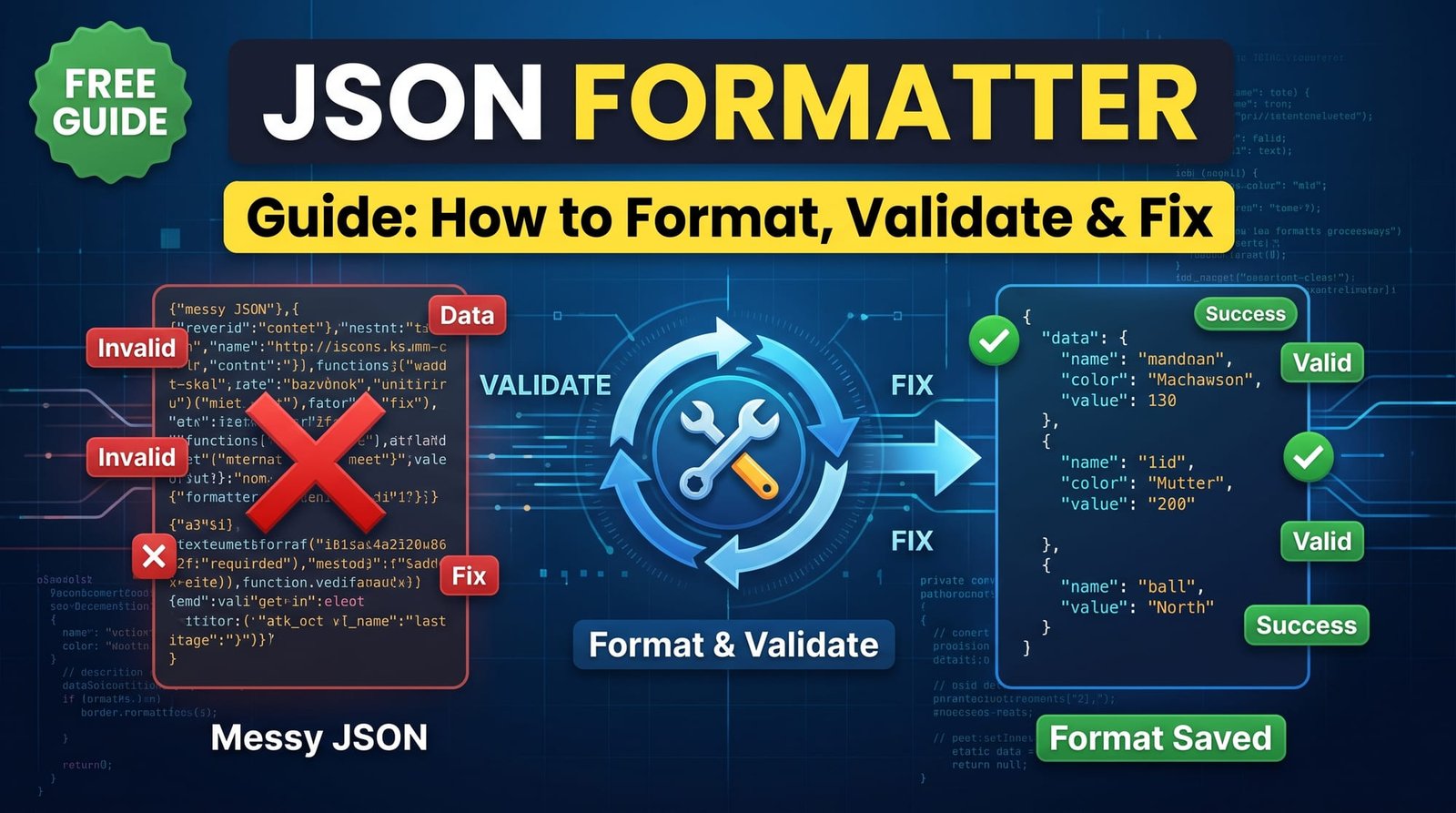
APIs, config files and logs often hand you JSON as one enormous line. Finding a single value — or the missing comma that breaks everything — is painful. A JSON formatter turns that wall of text into neatly indented, readable structure in a click, and a validator tells you exactly where it’s broken.
This guide explains what JSON is, how formatting and validation work, the errors you’ll meet most often and how to format JSON in popular editors.
What Is JSON?
JSON (JavaScript Object Notation) is a lightweight text format for structured data. It’s the default language of web APIs and is used for configuration files, databases and messaging. Here’s a small example:
{
  "name": "House of Convert",
  "tools": 113,
  "free": true,
  "categories": ["PDF", "Image", "Developer"]
}
It uses just a few building blocks: objects in curly braces, arrays in square brackets, strings in double quotes, numbers, true/false and null. The full rules are short — see json.org.
What Is a JSON Formatter?
A JSON formatter (also called a JSON beautifier or pretty-printer) adds line breaks and indentation so nested data is easy to scan. It doesn’t change the data — only the whitespace around it. Minified JSON and formatted JSON represent exactly the same values.
What Is a JSON Validator?
A validator checks whether the text is legal JSON. If it isn’t, a good validator tells you the line and position of the problem. Formatting and validation usually go together: you can’t reliably format something that isn’t valid.
How to Use a JSON Formatter Online (Step by Step)
With our free JSON Formatter & Validator:
- Paste your JSON into the editor.
- Click Format.
- If it’s valid, you’ll see it neatly indented. If not, you’ll get a clear error with a line number.
- Copy the result back into your project.
Everything runs in your browser, so API keys or customer data in your JSON never leave your device.
The Most Common JSON Errors
| Error | Example | Fix |
|---|---|---|
| Trailing comma | {"a": 1,} | Remove the last comma |
| Single quotes | {'a': 1} | Use double quotes |
| Unquoted keys | {a: 1} | Quote every key |
| Comments | // note | Remove them — JSON has no comments |
| Missing comma | {"a": 1 "b": 2} | Add a comma between items |
| Unescaped characters | A quote or line break inside a string | Escape with a backslash |
Many of these are valid in JavaScript but not in JSON, which is why copying an object from code into a JSON file often fails.
Why Is JSON Format Used So Widely?
- It’s easy for humans to read and write.
- Every programming language can parse it.
- It’s compact compared with XML.
- It maps naturally to objects and arrays in code.
How to Format JSON in VS Code
Open a .json file and press Shift + Alt + F on Windows, Shift + Option + F on Mac, or Ctrl + Shift + I on Linux. For pasted JSON in an unsaved tab, first set the language mode to JSON from the bottom-right corner. You can also enable “Format on Save” in settings.
How to Format JSON in IntelliJ, Sublime Text and Notepad++
- IntelliJ / WebStorm: Code → Reformat Code, or Ctrl + Alt + L (Cmd + Option + L on Mac).
- Sublime Text: install the Pretty JSON package and use its format command.
- Notepad++: install the JSON Viewer or JSTool plugin from the Plugins Admin.
When you’re not in your editor — on a different computer, in a meeting, or debugging a webhook — an online formatter is quicker than setting anything up.
Formatting JSON From the Command Line
If you live in the terminal, there are quick options too:
- jq:
cat data.json | jq .pretty-prints and colours the output, and can filter values as well. - Python:
python -m json.tool data.jsonworks anywhere Python is installed. - Node.js:
JSON.stringify(obj, null, 2)formats with two-space indentation inside scripts.
These are ideal for scripts and CI pipelines, while a browser-based JSON formatter is faster for one-off checks or when you’re on someone else’s machine.
Is a JSON Formatter Safe?
It depends where the formatting happens. Some online formatters send your JSON to their server, which is risky if it contains tokens, passwords or personal data. Ours formats entirely in your browser. As a rule, avoid pasting production secrets into any website that doesn’t clearly say it processes locally.
Formatting vs Minifying JSON
Formatting adds whitespace for humans; minifying removes it for machines. Minified JSON is smaller and faster to send over a network. Use formatted JSON while developing, and minified in production payloads. For minifying CSS, JavaScript and HTML, use Code Minifier.
Related Developer Tools
- Decoding a login token? JWT Decoder shows the JSON inside it.
- Need data in a URL? URL Encoder makes it safe.
- Working with Base64-wrapped JSON? Try Base64 Encoder/Decoder.
Final Thoughts
A JSON formatter turns unreadable data into something you can actually work with, and a validator saves you from hunting for a missing comma. Learn the common errors, use your editor’s shortcut when you can, and keep the free JSON Formatter bookmarked for everything else.
Frequently Asked Questions
What is a JSON formatter?
A tool that adds indentation and line breaks to JSON so it’s easy to read, without changing the data.
How do I format JSON?
Paste it into a JSON formatter and click Format, or use your editor’s format shortcut.
How do I format JSON in VS Code?
Press Shift + Alt + F on Windows or Shift + Option + F on Mac in a JSON file.
What is a JSON validator?
A tool that checks JSON against the syntax rules and points to the line and position of any error.
Is a JSON formatter safe?
Yes if it runs in your browser. Avoid pasting secrets into tools that send data to a server.
Why is my JSON invalid?
Common causes are trailing commas, single quotes, unquoted keys, comments and unescaped characters.
Can JSON have comments?
No. Standard JSON doesn’t allow comments; remove them before parsing.
What is JSON used for?
Sending data between apps and APIs, storing configuration and saving structured data.
What is the difference between formatting and minifying JSON?
Formatting adds whitespace for readability; minifying removes it to make the file smaller.
How do I format JSON in IntelliJ?
Use Code → Reformat Code or press Ctrl + Alt + L (Cmd + Option + L on Mac).